
If you’re looking to access Amara’s award-winning subtitling editor as an individual user in a private space to add captions and subtitles to your videos (or transcripts to your audio files), the Amara Orders Workspace is the perfect solution for you.
The Amara Orders Workspace is available to anyone who creates a free Amara username on the Amara Platform and confirms their email address.
AI-generated captions provide an initial version of your captions instantaneously.
AI-generated captions start at USD 0.35 per minute.
AI-generated captions are available in more than 30 languages.
You can integrate your personal Orders Workspace with your YouTube channel and/or your Vimeo account.
IMPORTANT NOTES:
There is a minimum order of USD $5.00 for AI captions OR Professional captions and subtitles ordered through your personal Orders Workspace.
AI-generated captions are not reviewed by humans. The output is a rough draft that is not 100% accurate. The highest quality AI caption output is for videos with:
Clear speech that is not fast and not too quiet;
Clear speech that is not affected by strong accents;
Little to no background noise;
Little to no overlapping speech or sounds.
It is recommended to review the AI caption output to correct any issues before publishing.
Once a video has been added to your Orders Workspace and your purchased captions and subtitles have been delivered, you have access to the subtitle editor to review and edit them or add unlimited new language subtitles for that video without additional charges.
Only the owner of the Orders Workspace has access to the Orders Workspace.
Only the owner can edit the captions in the Orders Workspace.
Links to videos or captions that are on the Orders Workspace cannot be shared with anyone else.
Create Your Personal Orders Workspace
Log into Amara.org with your free Amara username.
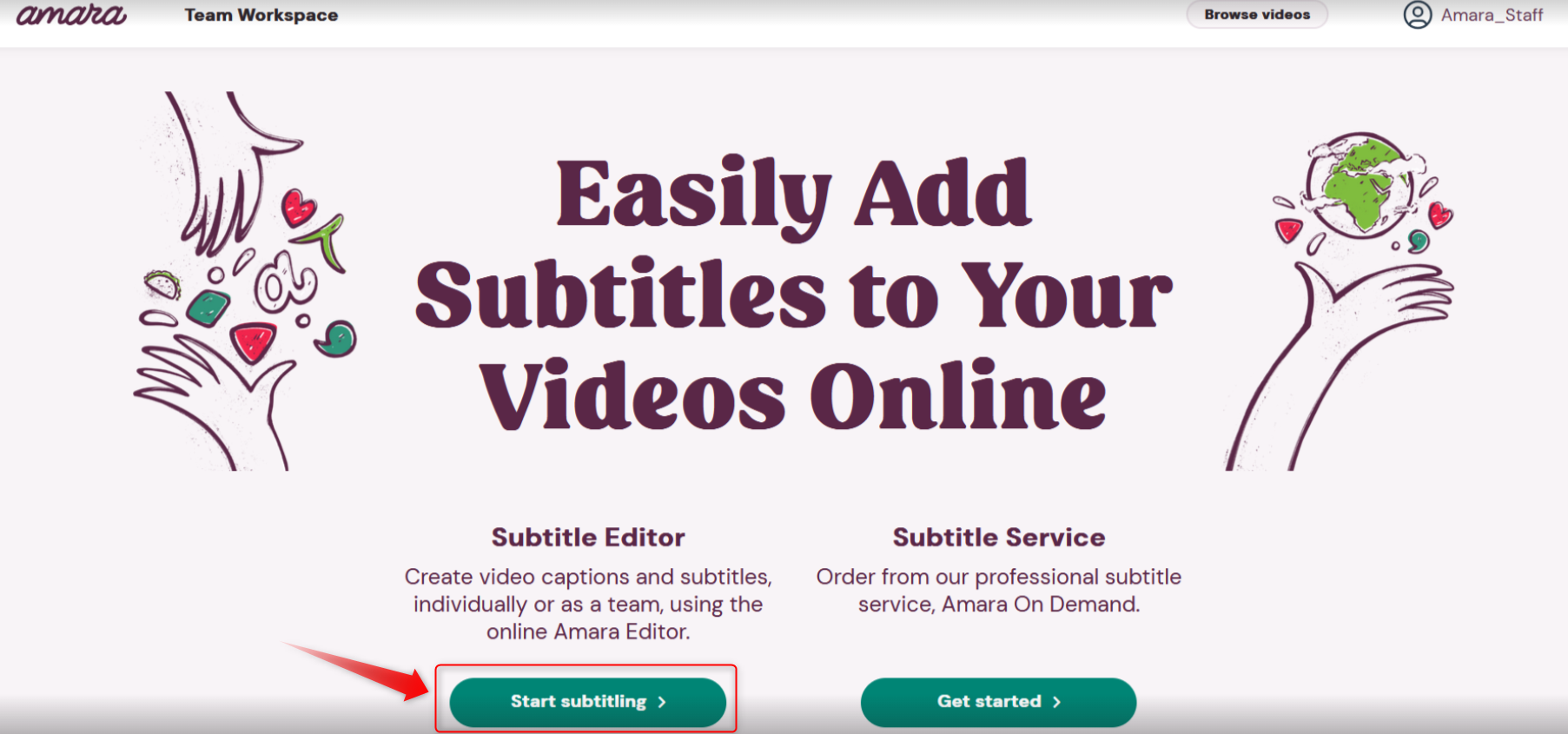
Click on the Start Subtitling button:
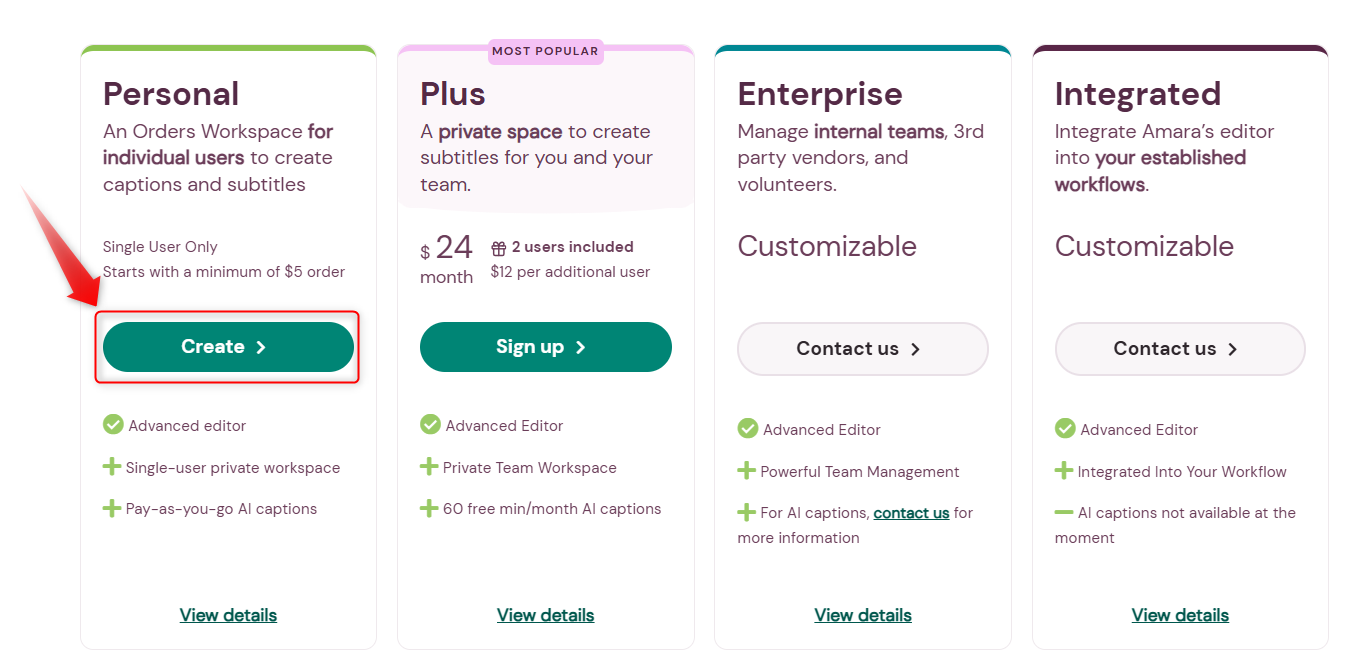
Click on the Create button in the Personal section of the page:
Click the Create My Orders Workspace button to finish creating your Orders Workspace:
Then your personal Orders Workspace will be visible on the menu bar whenever you log into Amara.org:

Add Videos to Your Personal Orders Workspace
When you add a video to your personal Orders Workspace, you will be prompted to order high-quality AI-generated captions.
You can add a video by URL;
You can upload a locally saved video or audio file;
You can re-order AI-generated captions for videos already added to your personal Orders Workspace from the Workspace Videos tab in the Add Videos to Order popup window.
You can use a combination of any of the above methods when adding videos to your personal Orders Workspace.
Videos added to your personal Orders Workspace will show on the Videos tab of your Orders Workspace:

View your AI caption order history from the Order History tab.
Add Videos
Select New Order from the menu bar:

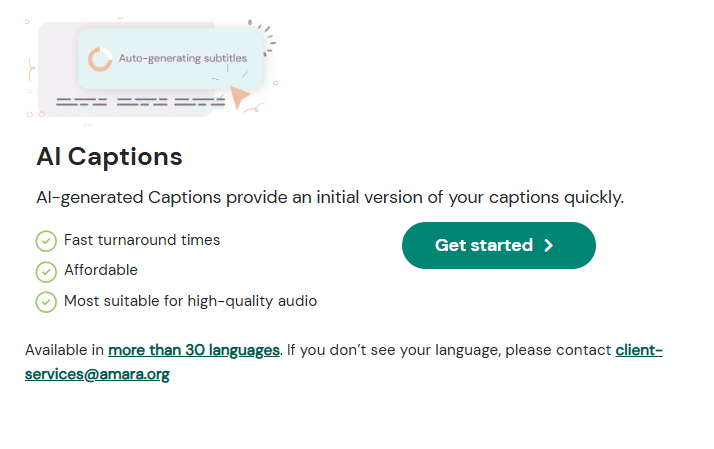
Select Get Started in the AI Captions section of the page:
Select the +Add videos button.
Choose how to add videos: Add Video URLs, Upload Video Files, or from Workspace Videos.
Add Video URLs
IMPORTANT NOTES:
You can add video URLs from your own YouTube channel, Vimeo account, or any other streaming site to your personal Orders Workspace.
If you add a video from your integrated YouTube channel and/or your Vimeo account to your personal Orders Workspace and publish/complete the AI captions, they export to the YouTube video/Vimeo video automatically if you choose that setting for the integration.
Copy the video URL to your clipboard.
Select New Order from the menu bar.
Click the Get Started button.
Click the +Add videos button.
A popup window opens titled Add Videos to Order.
Select the Add Video URLs option from the menu:
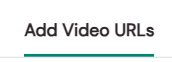
Paste the video URL into the box on the page.
Note: You can add multiple video URLs on this page. Enter one URL per line. To designate titles for the videos, add a space after a URL and enter the title after the space.
Select the video language.
Select the Add videos button.
Add more video URLs or upload more videos until you have reached the minimum order of $5, or accept the $5 charge.
Click on the Next button.
Click the Purchase button to proceed with the order, and/or click the Change order or Change card button:

Add a locally saved video or audio file
Select New Order from the menu bar.
Click the Get Started button.
Click the +Add videos button.
A popup window opens titled Add Videos to Order.
Select the Upload Video Files option from the menu:
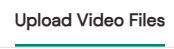
Select the video language.
Drag and drop files from your local drive, or click on the choose file(s) to upload link.
Add more video URLs or upload more videos until you have reached the minimum order of $5, or accept the $5 charge.
Click on the Add video to workspace button.
Click on the Next button.
Click the Purchase button to proceed with the order, and/or click the Change order or Change card button:

AI-generated captions are delivered to the videos on your personal Orders Workspace as incomplete subtitles.
Edit AI-Generated Captions
On the Videos page, click on the video title.
Click on the link to the incomplete subtitles under the Subtitles section of the page.
Click the Edit subtitles button.
Edit the subtitles, then click on the Publish button from the top left panel of the editor window:
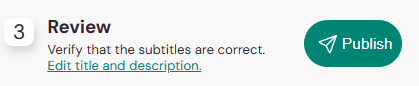
The subtitles will show as completed subtitles in the Subtitles section of the video page.
You can enter the editor to edit the completed AI-generated captions as often as you wish.
Create Translations
Once a video has been added to your orders workspace and has had the AI-generated captions completed you can add unlimited language subtitle translations to the video.
On the Videos page, click on the video you wish to create translations for.
Click on the Add/edit subtitles button and choose the language for the translated captions you wish to create:
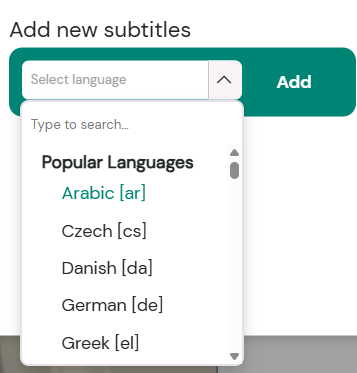
Click the Add button, and the editor will open.
Create the translation. The original language subtitle set will appear in the reference panel on the left side of the editor.
Download Subtitle Files
On the Videos page, click on the video you wish to download subtitles for.
Click on the download button to the right of the Subtitles header:
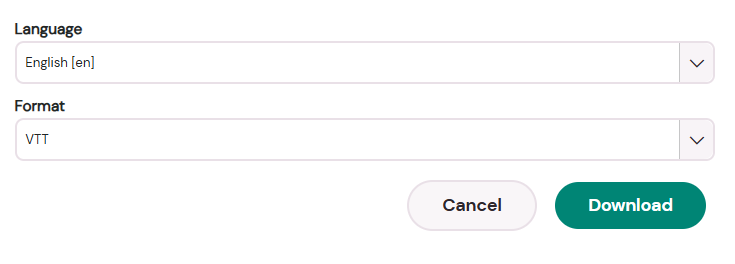
Scroll to the bottom of the popup window. Choose the language and file format, then click on the Download button.
Hire an Expert to Create Captions and Subtitles For You
Hire a professional linguist to create high-quality captions and subtitles for you.
Select New Order from the menu bar:

Select Get Started in the Hire an Expert section of the page:
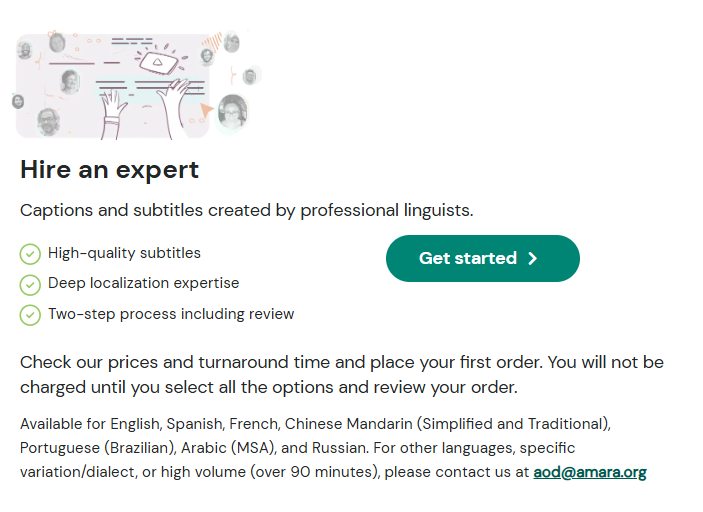
Click the Add videos button to Add Video URLs, Upload Video Files, or choose a video from your Workspace Videos.
Select the subtitle languages (including any translations), then the prices and turnaround times will display.
Click the Next button, then the Review Order button.
You will not be charged until you select all the options and review your order.
The subtitles and translations will be delivered to the videos on your personal Orders Workspace.
If you have any issues with your personal Orders Workspace please email support@amara.org to create a support ticket.
Thank you for your contributions to support an inclusive and accessible media ecosystem!
If you have any questions or suggestions, please share your feedback!
To submit a quick ticket, click No in the Did you find it helpful link below.