
You can add YouTube Short or Dropbox URLs to Amara.org, but there are edits you must make to the URLs in order to achieve the correct format URL that can be added to Amara.
- Sample of a YouTube Shorts URL that can be added to Amara:
- Sample of a Dropbox URL that can be added to Amara:
https://www.dropbox.com/s/5nu5ears8679wpi/WIN_20200608_09_27_36_Pro.mp4?raw=1
Follow the instructions in each section below for YouTube Shorts and Dropbox to:
copy a URL to your computer’s clipboard;
paste the URL into the Add Video window;
edit the URL to achieve the correct format that can be added to Amara.
Add YouTube Shorts to Amara.org
Step 1: Copy a YouTube Short URL
Right click anywhere on the video on YouTube.
When the black pop-up menu appears, select Copy video URL.
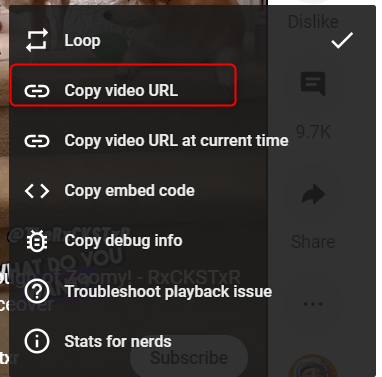
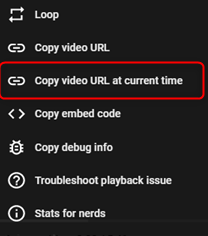
If Copy video URL gives an error when adding to Amara.org please use Copy video URL at current time.
Step 2: Paste a YouTube Short URL into the Add Videos Window
After copying the URL to your computer’s clipboard:
Click on Add videos > URL.
Select the language spoken in the video.
Paste the URL into the Video URL field.
Step 3: Manually Edit a YouTube Short URL
From the Video URL field, copy the video ID, shown in red in this example URL:
https://www.youtube.com/shorts/2yFkBLX8mtI?t=2&feature=share
Edit the beginning of the URL in the Video URL field to look like this:
Paste the video ID (example: 2yFkBLX8mtI) to the end of the string in the Video URL field to achieve the correct URL that can be added to Amara:
https://youtu.be/2yFkBLX8mtI
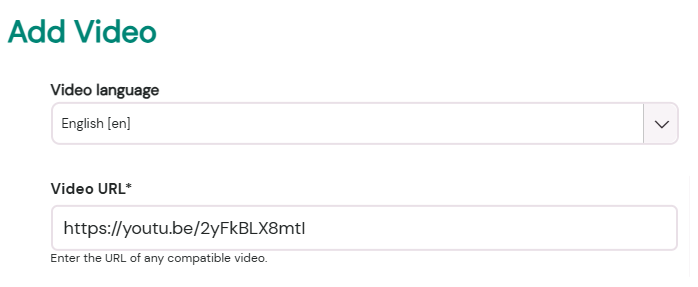
4. Click on the button Add Video (on the Orders Workspace) or Add Video to your team (on teams).
Add a Dropbox Video to Amara.org
You can add a Dropbox video to Amara.org, but there is an important part of the URL that must be changed in the Add Video window:
The last part of the URL string must be changed from dl=0 to raw=1
For example:
Original URL:
https://www.dropbox.com/s/5nu5ears8679wpi/WIN_20200608_09_27_36_Pro.mp4?dl=0
Edited URL:
https://www.dropbox.com/s/5nu5ears8679wpi/WIN_20200608_09_27_36_Pro.mp4?raw=1
Step 1: Copy a Dropbox URL
In Dropbox, click on the Share button, then the Copy link that appears in the popup window.
Step 2: Paste a Dropbox URL into the Add Videos Window
After copying the URL to your computer’s clipboard:
Click on the Add videos button.
Select the language spoken in the video.
Paste the Dropbox URL into the Video URL field.
Step 3: Manually Edit a Dropbox URL
In the Video URL field, change the last part of the URL string from dl=0 to raw=1:
https://www.dropbox.com/s/5nu5ears8679wpi/WIN_20200608_09_27_36_Pro.mp4?raw=1
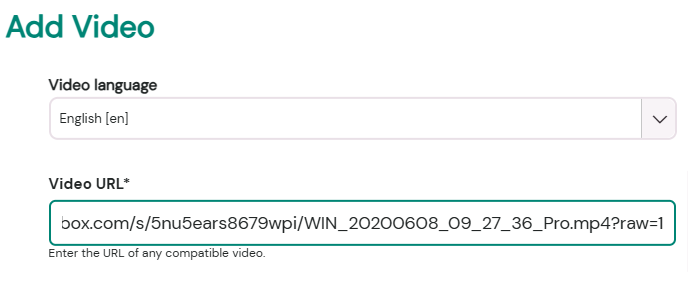
2. Click on the button Add Video (on the Orders Workspace) or Add Video to your team (on teams).
Troubleshoot Adding Videos to Amara.org
Videos must be embeddable.
Amara.org does not host video or audio records.
We only store subtitles and some related data.
Amara.org plays videos from their source location.
Whitelist www.amara.org for embedding on video source site
Thank you for your contributions to support an inclusive and accessible media ecosystem!
If you have any questions or suggestions, please share your feedback!
To submit a quick ticket, click No in the Did you find it helpful link below.