
Your personal Orders Workspace on Amara is a private space where completed AI captions and subtitles are delivered to your video and audio files, and where Orders Workspace owners can conveniently view, download, or edit their AI captions.
Integrating your personal Orders Workspace with your YouTube channel provides benefits that help save you time by automating several steps:
Import subtitles automatically when you add a video from your channel to your personal Orders Workspace.
Export subtitles automatically from Amara to the videos on your YouTube channel when marked complete on Amara.
Set up the Integration between a YouTube Channel and your Personal Orders Workspace
IMPORTANT NOTES:
A YouTube channel can only be connected to one place on Amara. You can connect your YouTube channel to your personal Orders Workspace or one Amara team, but not to multiple Orders Workspaces or teams.
Make sure you are logged in to your channel on YouTube before starting the integration process.
Go to your personal Orders Workspace on Amara.
Select Integrations from the menu bar:

Select the Add Account button.
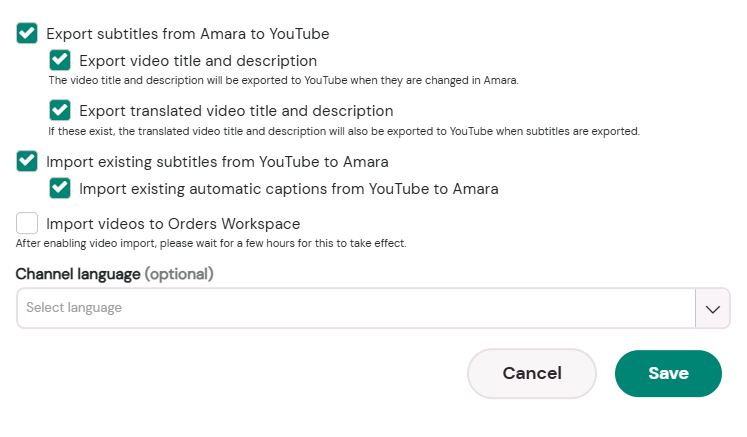
In the YouTube tab, select the desired integration options under the Subtitle Import/Export section:
IMPORTANT NOTE: Do not select Import videos from YouTube to Amara, as this function will only work in Amara teams and not in your Orders Workspace.
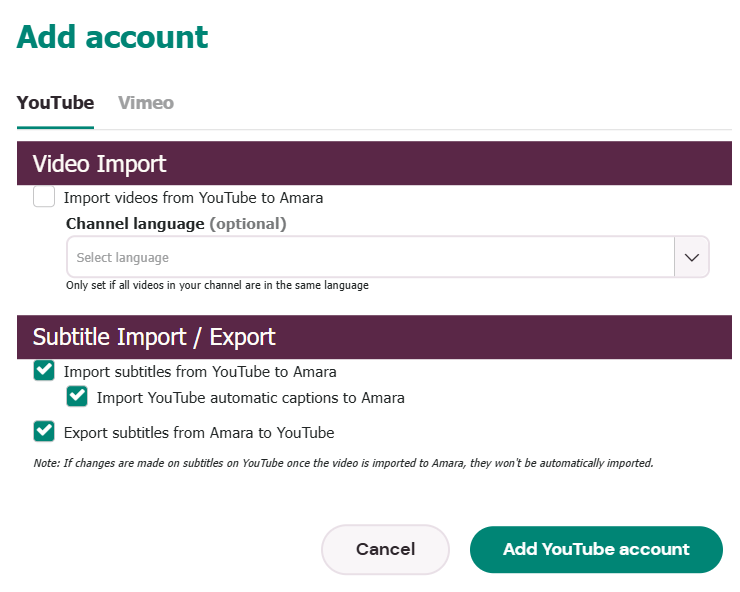
Click the Add YouTube account button.
Choose an account that is the owner of the YouTube channel.
Review the permissions and click on the Continue button.
Click the Select all box to accept what Amara can access, then click on the Continue button.
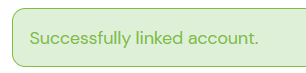
You should see a success message at the top of the page when the YouTube channel has been successfully integrated with your personal Orders Workspace:
NOTE:
After your YouTube channel is integrated, when you add videos from your YouTube channel to your personal Orders Workspace video information such as title, thumbnail, and description will be imported.
Subtitles are exported automatically from Amara to the videos on your YouTube channel whenever they are completed and published on Amara.
Changes made to subtitles on YouTube will not update on Amara. Use Amara to edit subtitles.
Verify that Subtitles Exported to YouTube Videos
There are three ways you can verify that your completed subtitles on Amara automatically exported to the videos on your YouTube channel, if you chose that setting in the YouTube integration.
Verify Export From Subtitle Export History on the Integrations Page
Select Integrations from the menu bar:

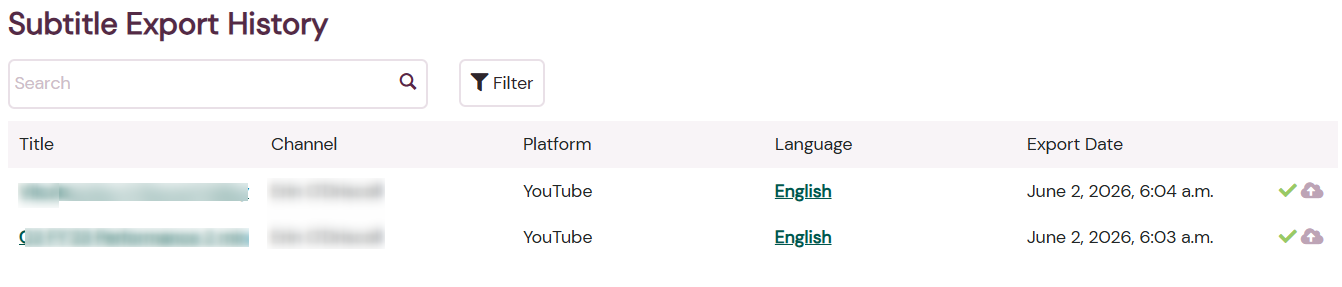
If the subtitles created on Amara have successfully exported to YouTube, you will see a green check mark in the Export Date column and the word YouTube in the Platform column in the Subtitle Export History section of the Integrations page:
Verify Export From the URL Tab on the Video Page
Click on the video that you want to check for subtitle export.
Under the video player, click on the URLs tab.
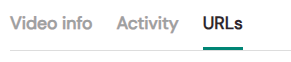
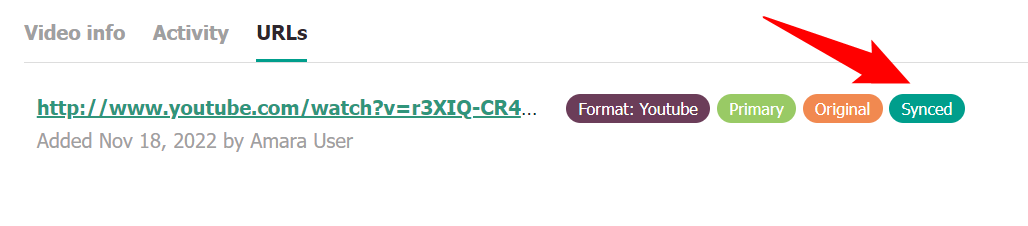
If the subtitles created on Amara have successfully exported to YouTube, you will see a tag that says Synced next to the video URL:
Verify Export From the Subtitles Page
Click on the video that you want to check for subtitle export.
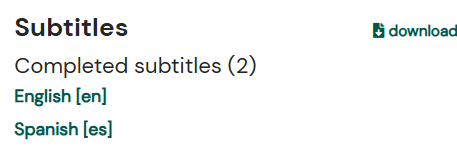
Click the language under Completed Subtitles in the Subtitles section on the Video page:
Under the video player, click on the Sync History tab:

If the subtitles created on Amara have successfully exported to YouTube, you will see the word Success in the Result column:

Submit a support ticket with your Amara username and video URL if you have issues with exporting subtitles.
Edit the YouTube Integration
Select Integrations from the menu bar:

2. Select the edit button to the right of the integrated channel name:
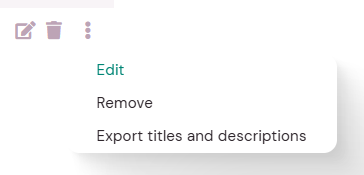
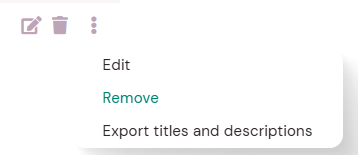
Or click the three dot menu and select Edit:
3. Edit the integration settings and select Save:
Remove the YouTube Integration
Select Integrations from the menu bar:

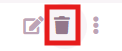
Select the trashcan button to the right of the integrated channel name:
Or click the three dot menu and select Remove:
Confirm that you want to remove the integration, and click on the Remove button.
Privacy and Special Considerations
Videos are hosted on YouTube, so any updates made to the video content on YouTube will be reflected on Amara.
YouTube privacy settings for a video determines what it looks like in the video player where the video is embedded.
Currently, we do not support re-importing subtitle tracks from YouTube to Amara after the video is added to Amara.
YouTube auto-generated subtitles are not imported to Amara.
Subtitles imported from YouTube will appear on the Subtitle Details page as Revision 1 imported by “Amara Bot.”

Thank you for your contributions to support an inclusive and accessible media ecosystem!
If you have any questions or suggestions, please share your feedback!
To submit a quick ticket, click No in the Did you find it helpful link below.